"화면(탭) · 무엇을 했나 · 무엇이 나왔나 · 기대한 것" 네 줄이면 충분합니다. 스크린샷이 있으면 더 좋고, 결과 JSON 내보내기 파일을 붙이면 가장 빠릅니다.
데이터 기여
앱 안에서 보냅니다. 파일을 열거나 고칠 필요가 없습니다.
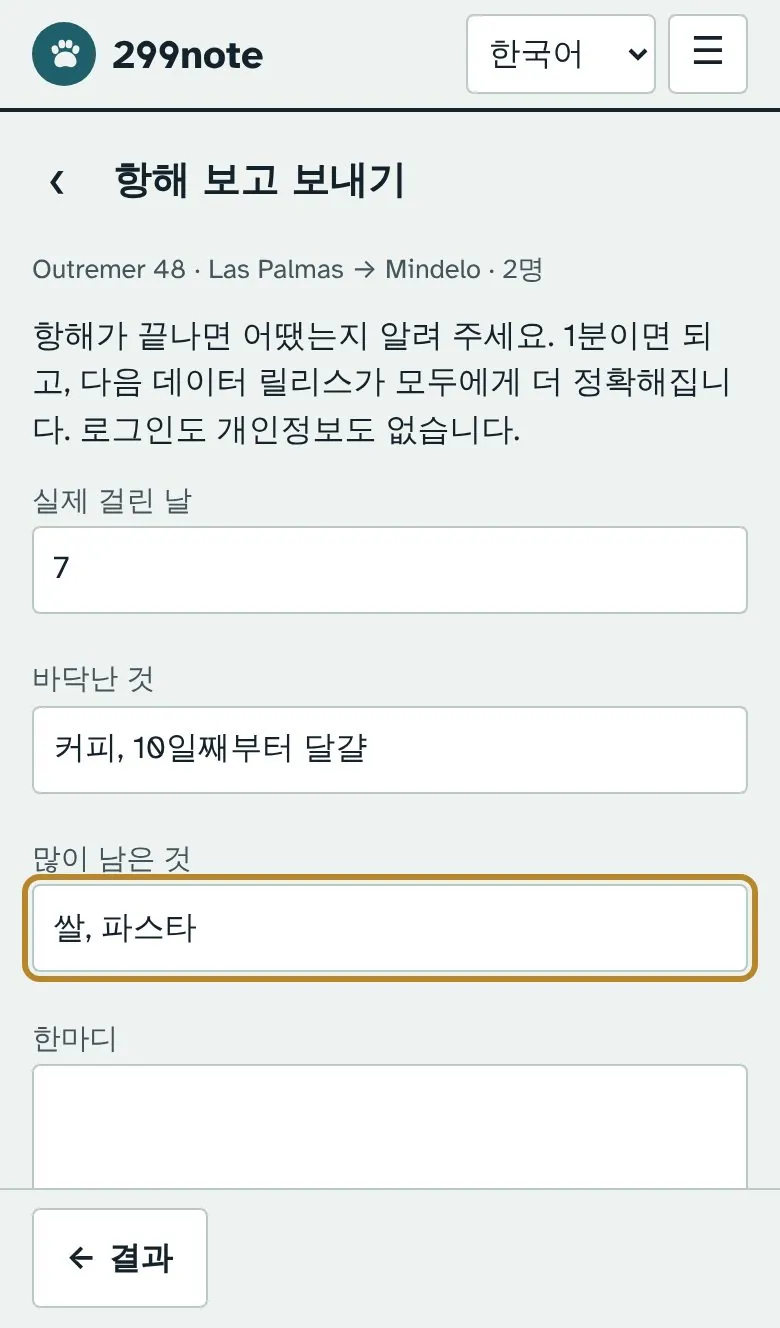
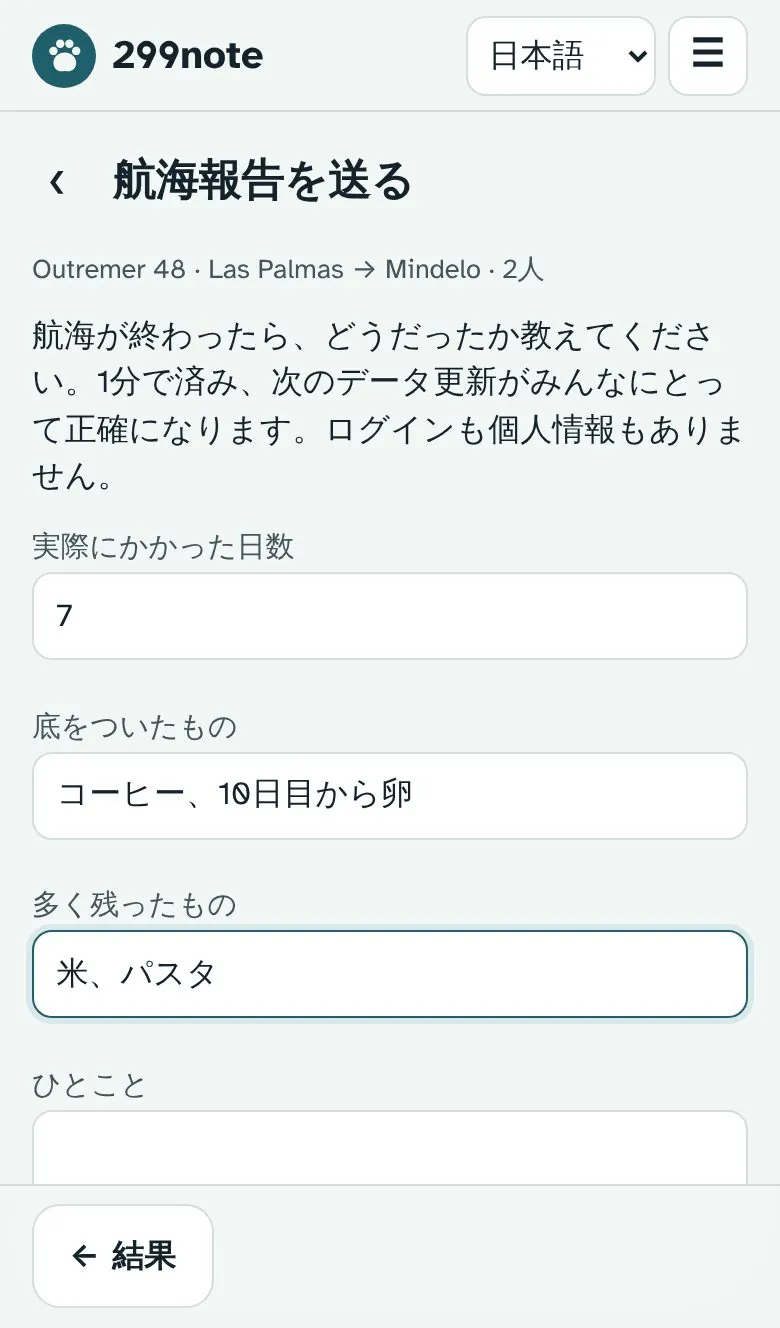
항해 보고. 결과 화면 아래의 항해 보고 보내기를 누르고 실제 걸린 날, 바닥난 것, 많이 남은 것, 한마디를 적습니다. 그다음 메일로 보내기(메일 앱이 열립니다), 공유하기(폰에서 결과 파일을 함께 보냅니다), 파일로 저장 중 하나를 고릅니다. 보내지는 것은 배 템플릿, 구간, 인원수, 결과 요약, 적은 내용뿐입니다.
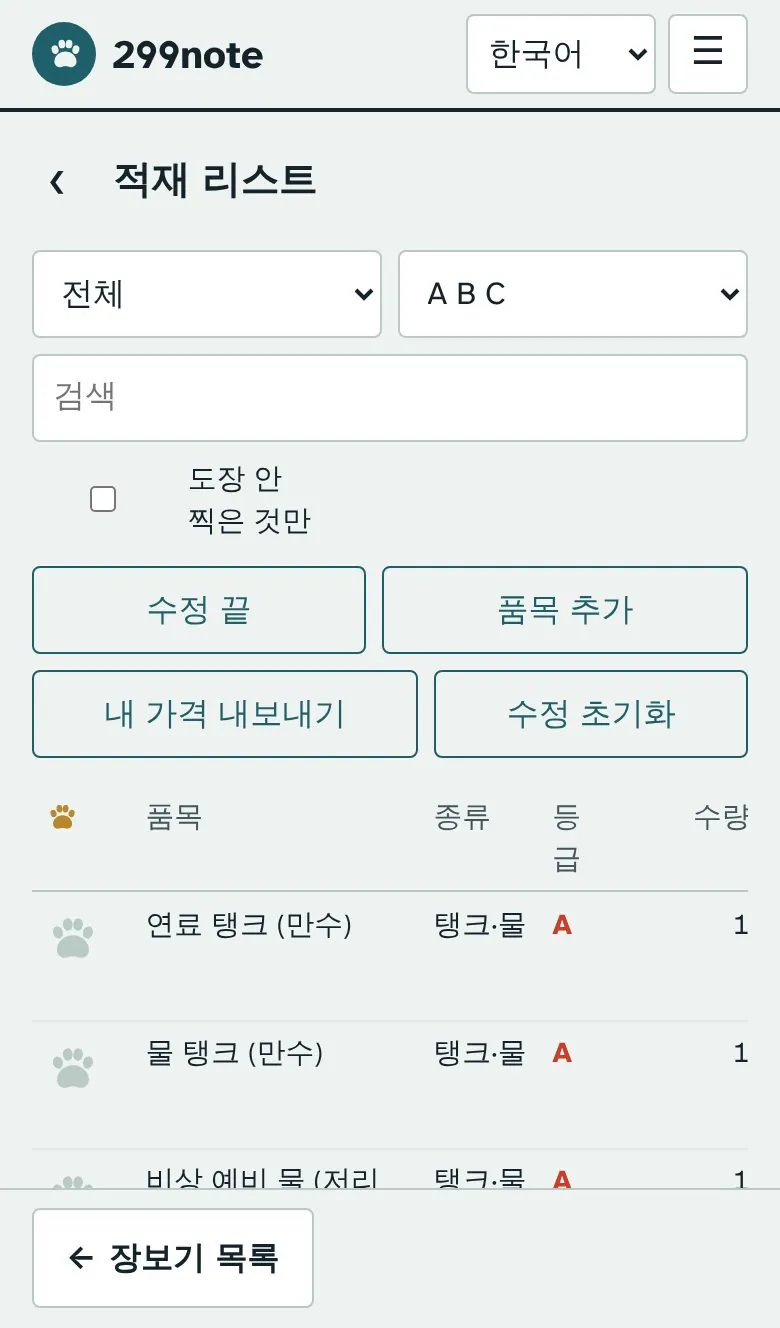
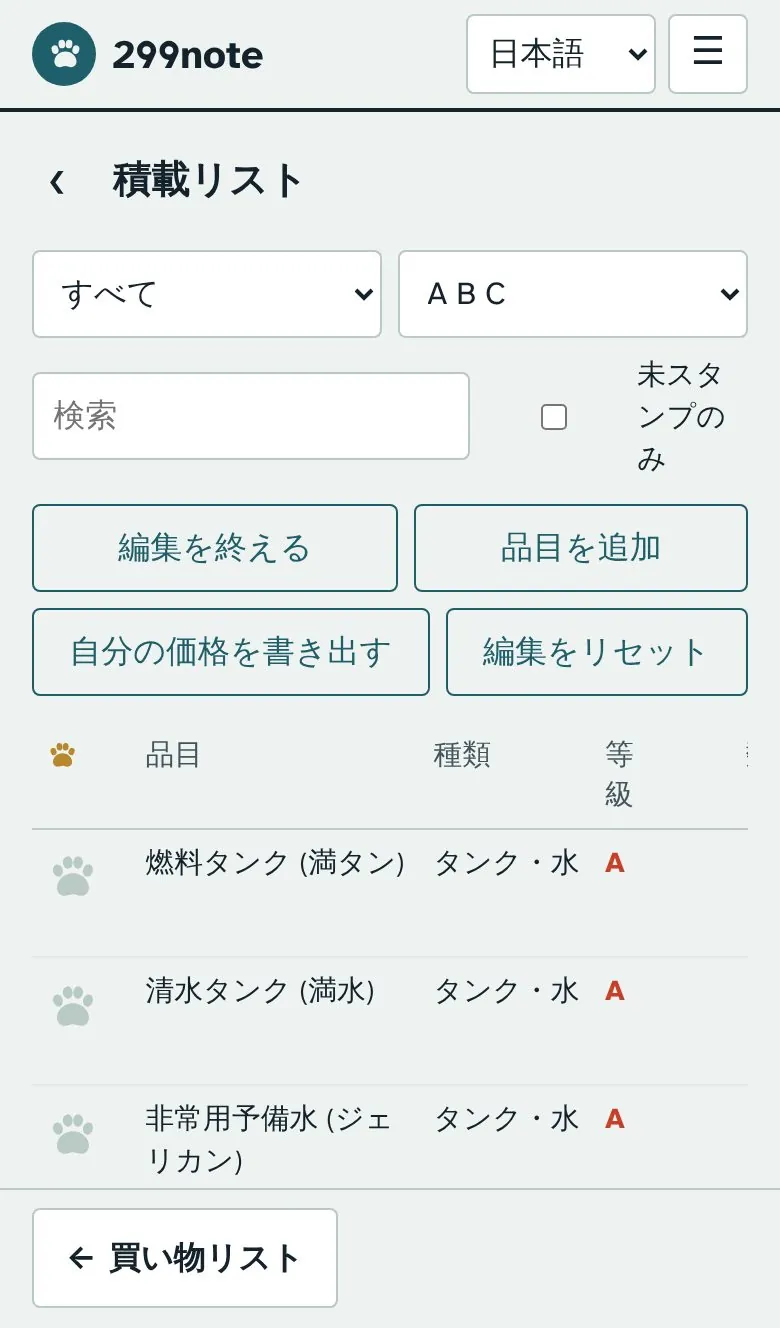
영수증 가격. 장보기 화면에서 전체 목록과 편집을 열고 품목 편집을 켠 뒤, 가격 옆의 통화 버튼을 눌러 실제로 낸 값을 적습니다. 장보기 화면으로 돌아와 내 가격 보내기를 누르면 됩니다.
항해 보고: 네 칸을 적고 메일로 보내기를 누릅니다.영수증 가격: 편집을 켜고 가격 옆의 통화 버튼을 누릅니다.
다음 데이터 릴리스에 반영하고, 기여자 수를 사용법 페이지에 표시합니다.
Contact and partnerships
Bug reports, questions, data contributions (receipt prices, passage debriefs, equipment replacements) and partnership enquiries all go to one address: [email protected]. Replies usually within three days, sometimes longer.
Being prepared. They will be published here before any paid service starts.
How to report a bug
Four lines are enough: the screen or tab, what you did, what you got, what you expected. A screenshot helps, and the "Export result JSON" file is fastest.
Contributing data
It is done inside the app. No file to open or edit.
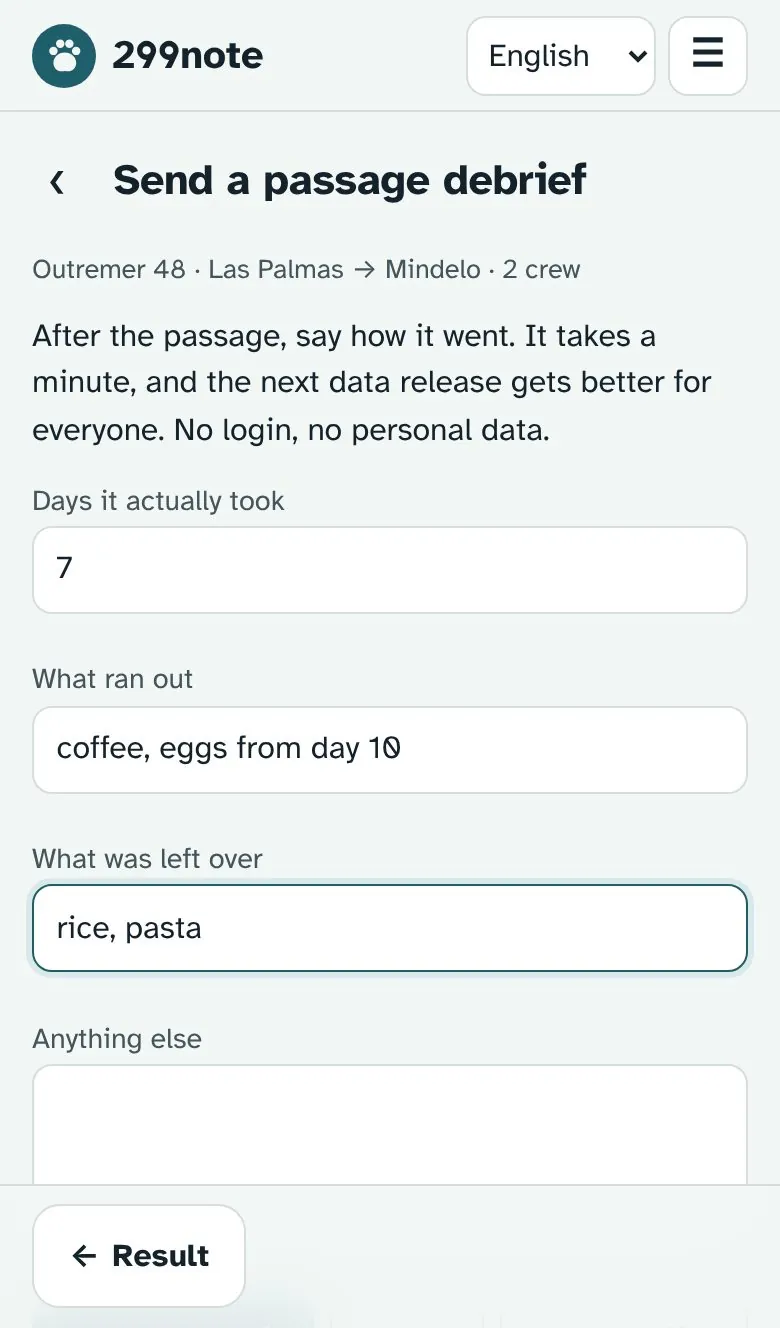
Passage debrief. Under the result screen tap Send a passage debrief and fill in the days it took, what ran out, what was left over and a note. Then choose Send by email (your mail app opens), Share (on a phone the result file goes along) or Save as file. What is sent: the boat template, the leg, the crew count, the result summary and what you wrote.
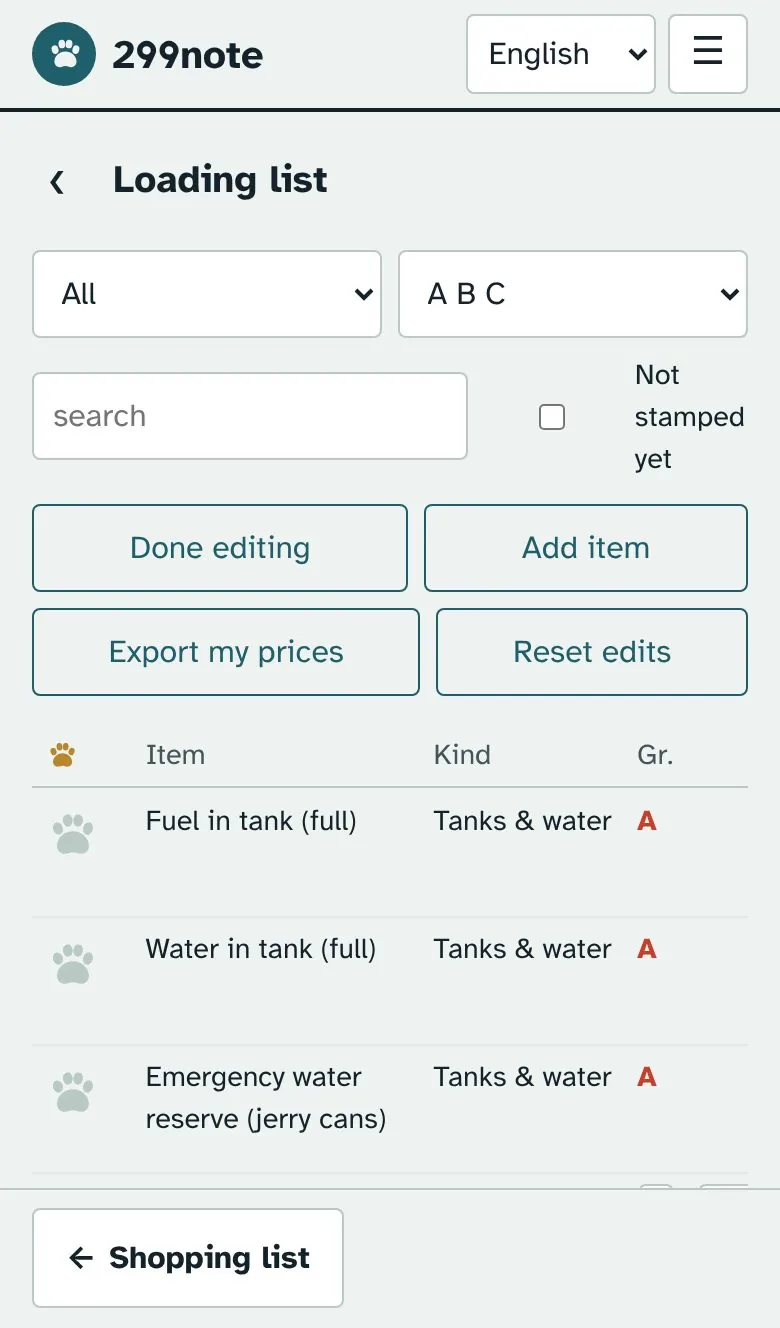
Receipt prices. On the shopping screen open Full list and edits, switch on Edit items and tap the currency button next to a price to enter what you paid. Back on the shopping screen tap Send my prices.
Debrief: fill in four fields and tap Send by email.Receipt prices: switch on editing and tap the currency button next to a price.
They go into the next data release and the contributor count is shown on the guide page.
Contacto y colaboraciones
Avisos de errores, preguntas, aportaciones de datos (precios de tickets, informes de travesía, cambios de equipo) y propuestas de colaboración van a una sola dirección: [email protected]. Respondemos normalmente en tres días, a veces más.
En preparación. Se publicarán aquí antes de que empiece cualquier servicio de pago.
Cómo avisar de un error
Bastan cuatro líneas: la pantalla o pestaña, qué hiciste, qué salió y qué esperabas. Una captura ayuda, y el archivo "Exportar resultado JSON" es lo más rápido.
Aportar datos
Se hace dentro de la app. No hay que abrir ni editar archivos.
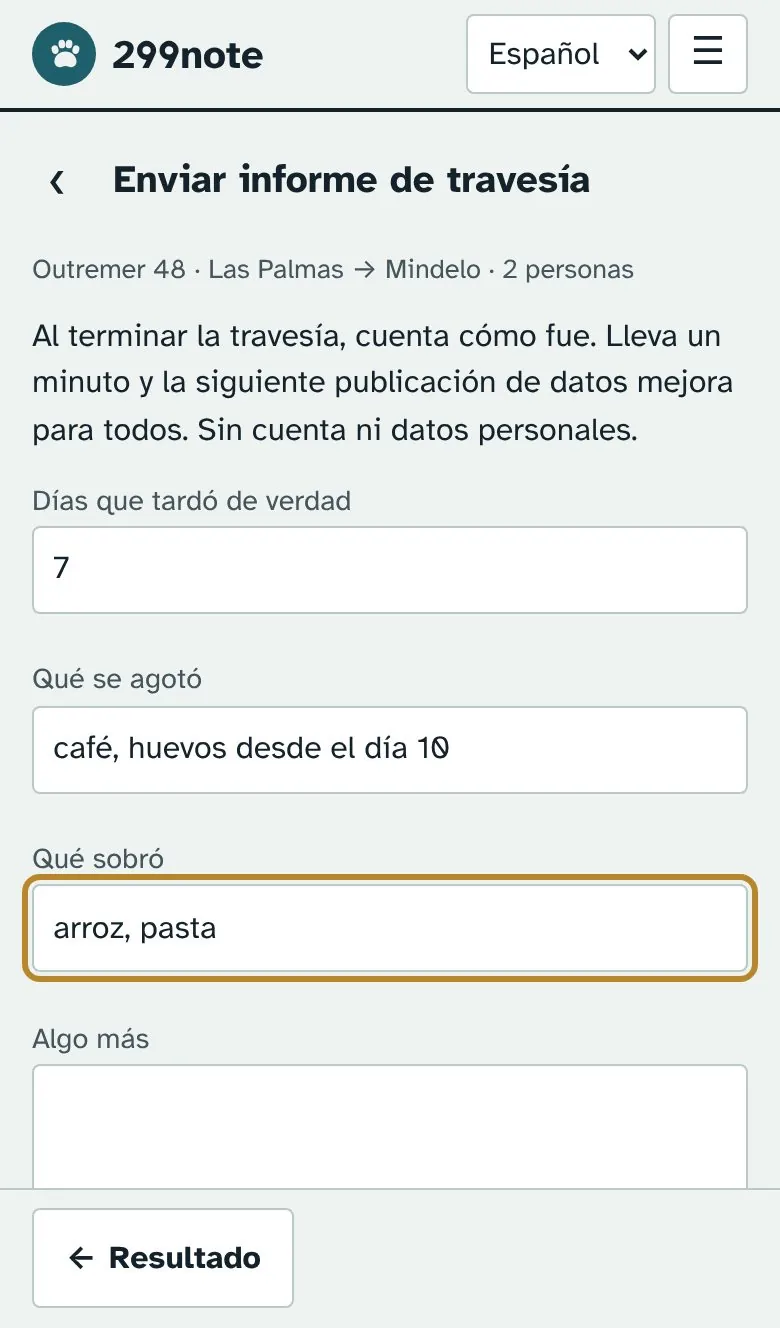
Informe de travesía. Bajo la pantalla de resultado toca Enviar informe de travesía y rellena los días que tardó, qué se agotó, qué sobró y una nota. Luego elige Enviar por correo (se abre tu correo), Compartir (en el móvil va con el archivo del resultado) o Guardar como archivo. Se envía: la plantilla del barco, el tramo, el número de tripulantes, el resumen del resultado y lo escrito.
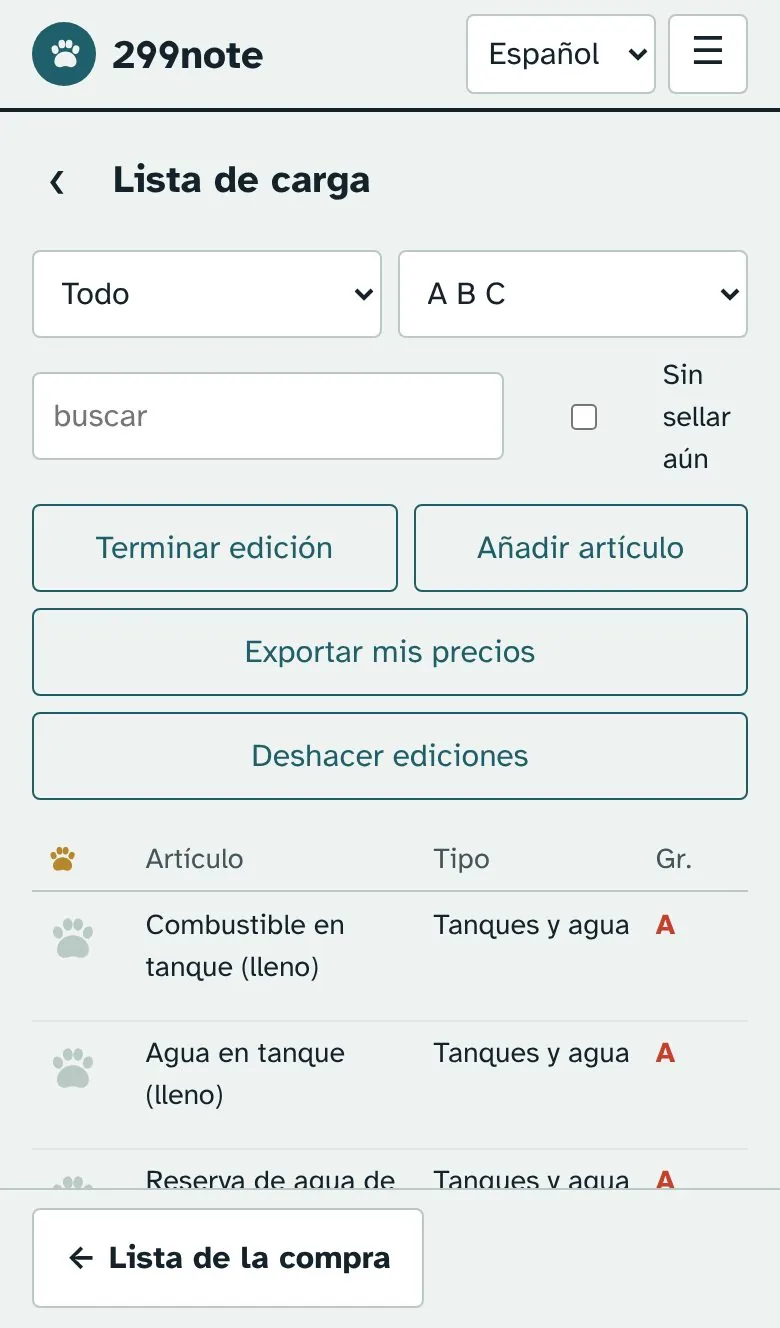
Precios de tickets. En la pantalla de compra abre Lista completa y ediciones, activa Editar artículos y toca el botón de moneda junto a un precio para anotar lo que pagaste. De vuelta en la pantalla de compra toca Enviar mis precios.
Informe: rellena cuatro campos y toca Enviar por correo.Precios: activa la edición y toca el botón de moneda junto a un precio.
Entran en la siguiente publicación de datos y el número de colaboradores se muestra en la guía.
Contact et partenariats
Signalements de bugs, questions, contributions de données (prix de tickets, comptes rendus de traversée, remplacements de matériel) et demandes de partenariat passent par une seule adresse : [email protected]. Réponse en général sous trois jours, parfois plus.
En préparation. Ils seront publiés ici avant tout service payant.
Signaler un bug
Quatre lignes suffisent : l’écran ou l’onglet, ce que vous avez fait, ce qui est sorti, ce que vous attendiez. Une capture aide, et le fichier « Exporter le résultat JSON » est le plus rapide.
Contribuer des données
Tout se fait dans l’application. Aucun fichier à ouvrir ni à modifier.
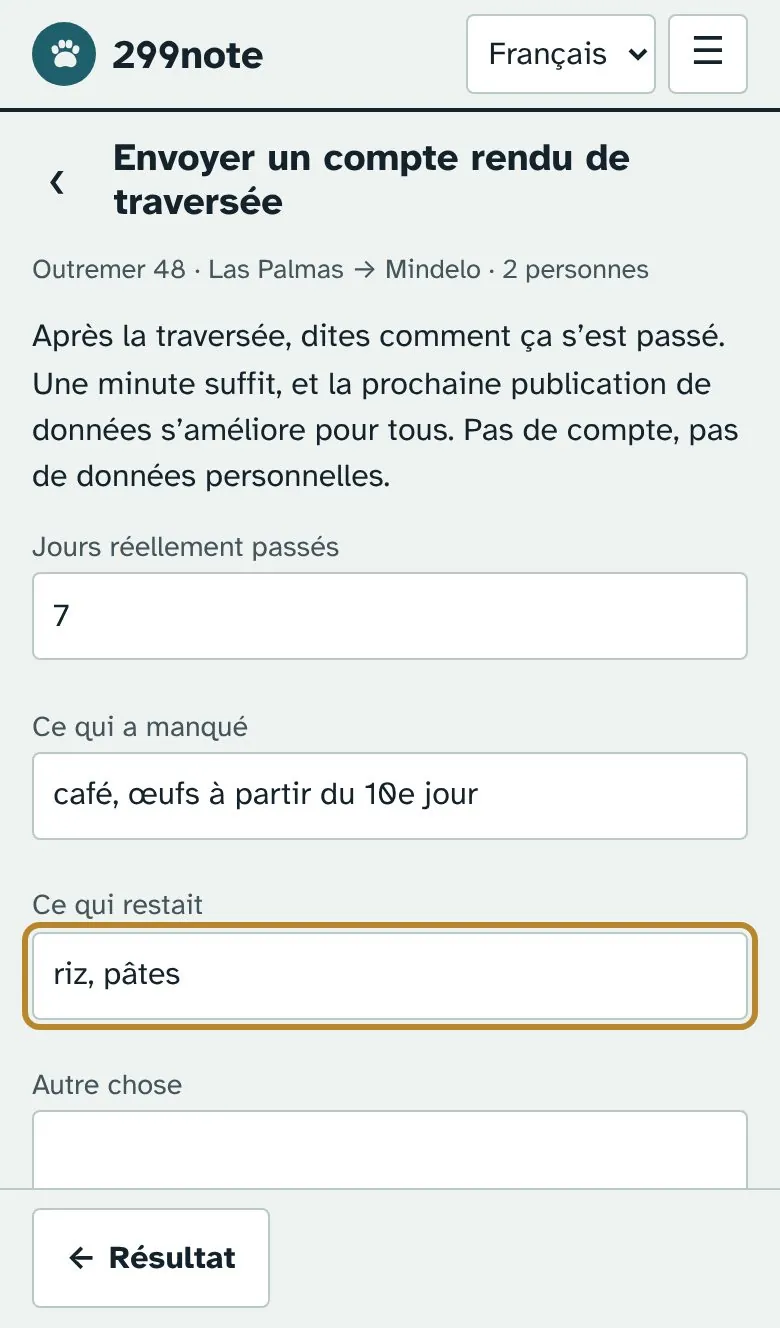
Compte rendu de traversée. Sous l’écran de résultat, touchez Envoyer un compte rendu de traversée et indiquez les jours réellement passés, ce qui a manqué, ce qui restait et une note. Puis choisissez Envoyer par courriel (votre messagerie s’ouvre), Partager (sur un téléphone le fichier du résultat part avec) ou Enregistrer un fichier. Envoyé : le modèle du bateau, l’étape, le nombre d’équipiers, le résumé du résultat et ce que vous avez écrit.
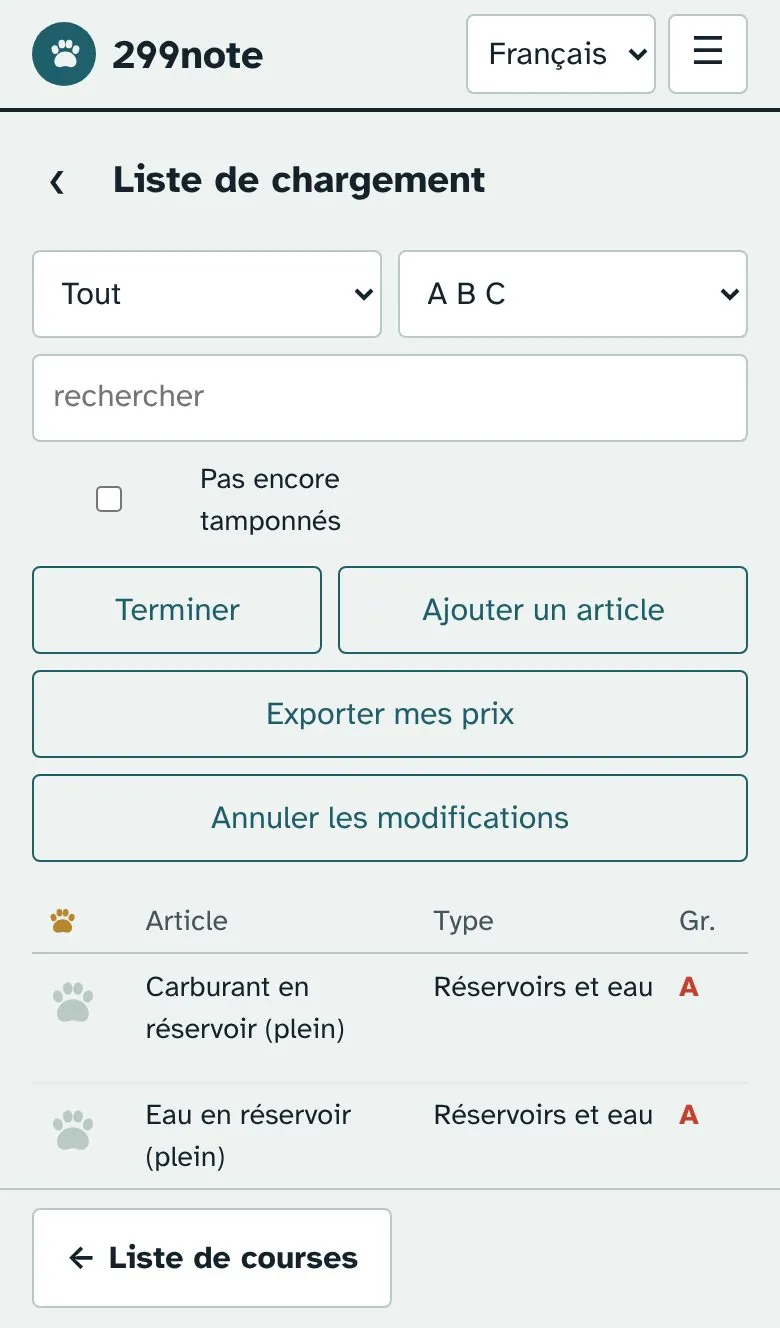
Prix de tickets. Sur l’écran des courses, ouvrez Liste complète et modifications, activez Modifier les articles et touchez le bouton de devise à côté d’un prix pour saisir ce que vous avez payé. De retour sur l’écran des courses, touchez Envoyer mes prix.
Compte rendu : remplissez quatre champs et touchez Envoyer par courriel.Prix : activez la modification et touchez le bouton de devise à côté d’un prix.
Ils entrent dans la prochaine publication de données et le nombre de contributeurs figure sur le guide.